
To connect to your Managed WordPress website using SFTP, open FileZilla and select the File > Site Manager option.
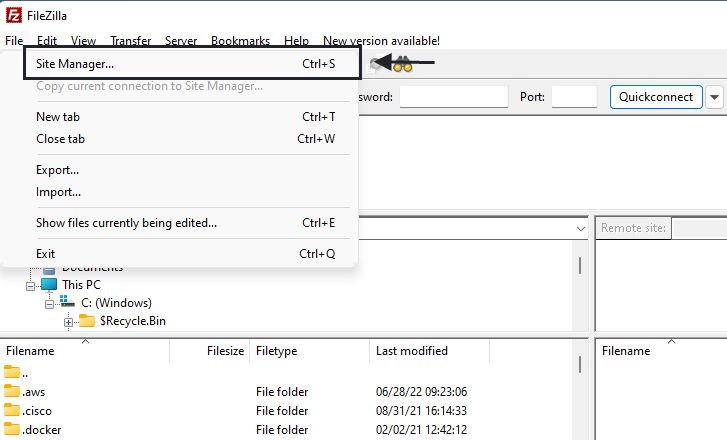
The FileZilla Site Manager will open a new session where you can select the SFTP option to transfer files.
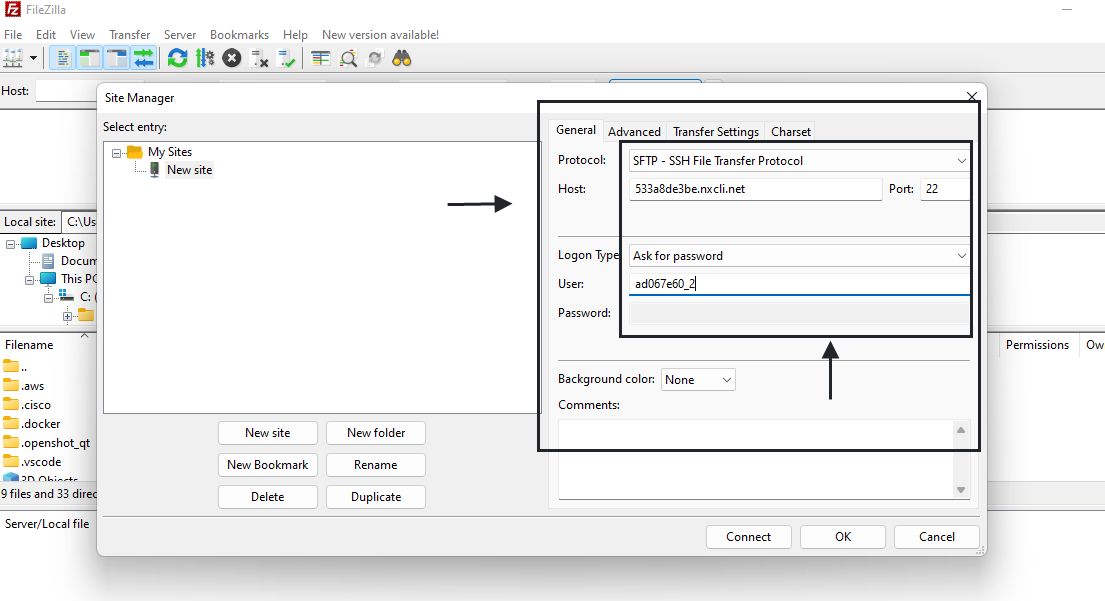
Select SFTP from the Protocol drop-down.
Next, paste the web server's hostname into the Host box.
With SFTP, the Port defaults to 22 (it will not show up in the port box, but it's always the default for SSH connections) so you do not need to enter 22 in the port box, but you can if you want.
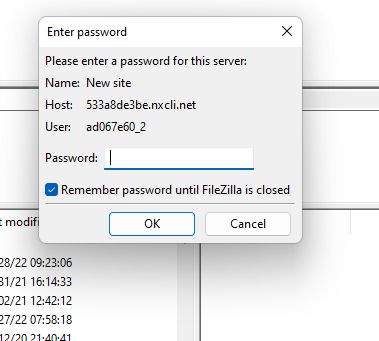
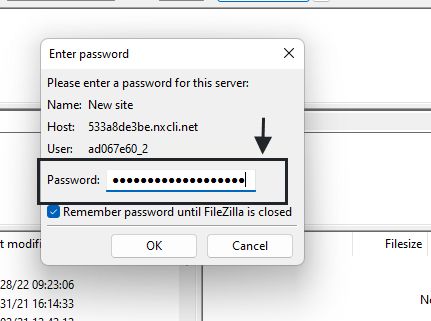
Enter your password and click OK.
Now, you will get a new pop-up warning message asking for a verification message. This warning message will be displayed for every first connection to the website.
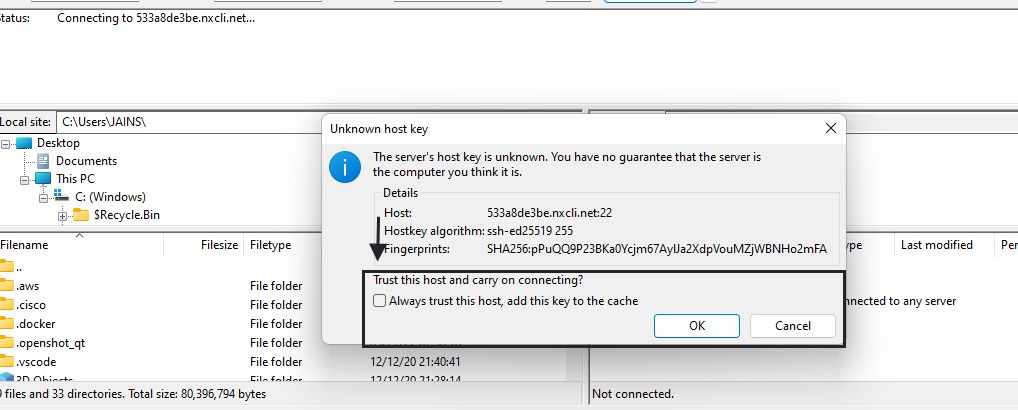
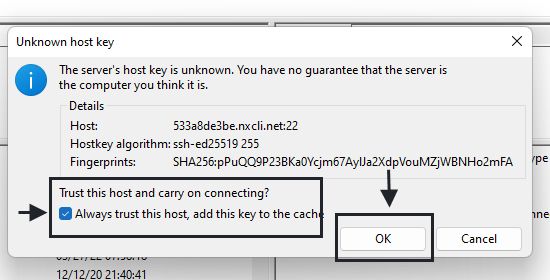
Select the Always trust this host, add this key to the cache checkbox and click the OK button to connect to your WordPress website.
FileZilla will connect to the website and show you the folders and files.

Comments
0 comments
Article is closed for comments.